Map Ctrl/Shift + Enter in Vim / iTerm2
Method 2 (Updated on 2025-02-08):
CSI u is an advanced method for reporting key combinations and is supported by Neovim, iTerm2, and tmux.
- Enable the
CSI umode in iTerm2:- Go to Profiles > Keys > Report keys using CSI u
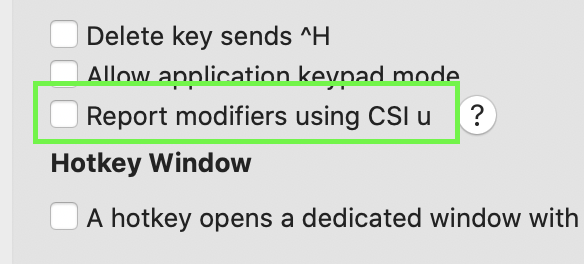
- Go to Profiles > Keys > Report keys using CSI u
- Optionally, download the CSIu-Backward-Compat.itermkeymap and import it:
- Go to Profiles > Keys > Key Mappings > Import

- Go to Profiles > Keys > Key Mappings > Import
- Enable extended keys for tmux:
set -s extended-keys on - Write normal key mappings in Neovim:
vim.api.nvim_set_keymap("n", "<C-Cr>", "za", { noremap = true })
Method 1
You cannot directly map <c-cr> or <s-cr> in Vim because iTerm2 does not send those key combinations to the terminal. However, I have found an alternative: instead of mapping those key combinations directly, I configure iTerm2 to send the function keys (F1 to F12) when ctrl+enter or shift+enter is pressed, and then create my Vim mappings using the function keys.
To find the escape sequence corresponding to the function keys, press ctrl+v in a shell prompt followed by the function key. On a MacBook, press the fn key along with the keys on the top row to send a function key.
Here’s what I get on my MacBook Air:
$ ^[OP    # F1
$ ^[OQ    # F2
$ ^[OR    # F3
$ ^[OS    # F4
$ ^[[15~  # F5
$ ^[[17~  # F6
$ ^[[18~  # F7
$ ^[[19~  # F8
$ ^[[20~  # F9
$ ^[[21~  # F10
$         # Nothing shows up for F11 on my machine
$ ^[[24~  # F12
Please note that ^[ marks the beginning of the escape sequence. Next, navigate to iTerm2 Settings > Profiles > Keys > Key Mappings, and click the + button. Press the key combination you wish to map, then choose the “Send Escape Sequence” action, and enter the corresponding escape sequence, omitting the ^[ portion. For example, F1 should be entered as OP.
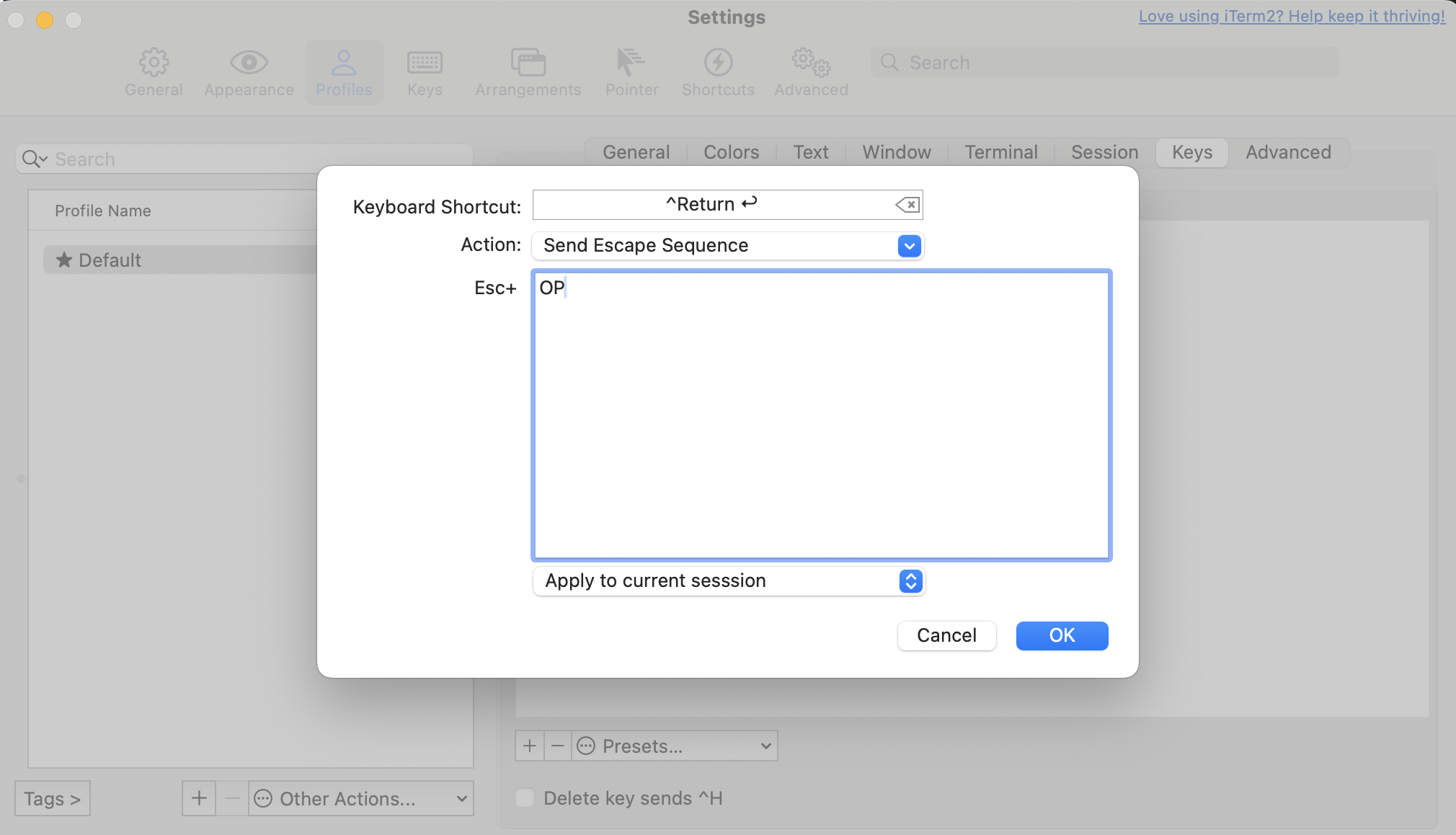
Finally, be sure to update your Vim mappings:
-- I have assigned ctrl+enter to F1 in iTerm2
-- and I am mapping it to toggle a fold with za
vim.api.nvim_set_keymap("n", "<F1>", "za", { noremap = true })